💻 Why Mac Users Struggle with NTFS Drives (And How to Fix It)
If you’ve ever tried to transfer files between Windows and Mac systems, you’ve likely encountered the frustrating limitation: your Mac can read NTFS drives but cannot write to them.
This is because macOS only provides read-only access to NTFS-formatted drives by default—the standard file system used by Windows computers.
This limitation creates headaches when:
You can’t save files to your Windows-formatted external hard drive
You’re unable to delete or modify files on your NTFS drive
Your WD Passport or Seagate drive shows as “read-only” on Mac
You need to transfer large files between Windows and Mac systems.
💡 The Solution: EaseUS NTFS for Mac
If you’re a Mac user struggling with read-only access to your Windows-formatted (NTFS) drives, EaseUS NTFS for Mac is your best solution.
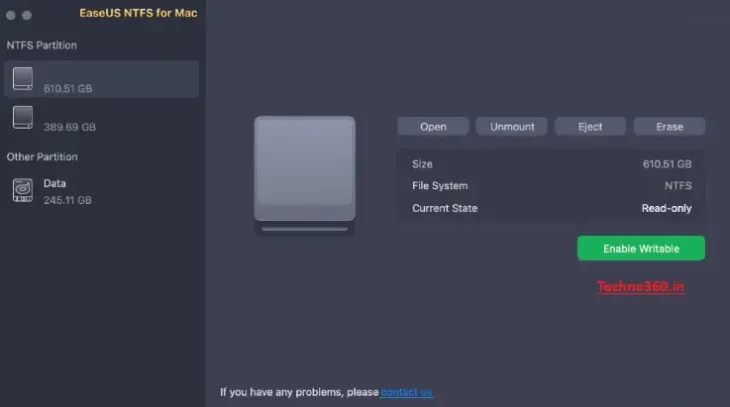
This powerful utility provides full read and write access to NTFS drives—eliminating the “read-only” frustration! You can easily edit, copy, delete, and transfer files between your Mac and NTFS drives with no need to reformat them, all directly from your Finder.
Key Features:
Full Read/Write Access: Edit, delete, copy, or save files on NTFS drives.
1-Click Mount/Unmount: Manage drives from your Mac’s status bar—no Terminal commands needed.
Blazing-Fast Transfers: Optimized for large files (videos, projects, backups)
Format Flexibility: Supports NTFS, exFAT, FAT32, APFS, and HFS+
Supports Latest macOS—Fully compatible with macOS Monterey, Ventura, and beyond.
💡 Pro Tip: Unlike free tools like Mounty or NTFS-3G, EaseUS offers faster speeds, M1/M2/M3 support, and a user-friendly interface.
How to Claim Your Free License?
- 📥 Download the Installer:
Grab the software from the official link:
https://down.easeus.com/ - 🔑 Activate with License Code:
Launch the app, click “I already have a license“, and enter:EX53Q-IJSMJ-WS1BC-FLXL8-1S8DD - 🔒 Grant Full Disk Access (Crucial!):
- Go to System Settings > Privacy & Security > Full Disk Access.
- Click the lock icon 🔒 and enter your admin password.
- Drag both
EaseUS NTFSicons into the list. - Click “Quit & Restore“ to relaunch the app.
⚠️ Important License Terms
Lifetime validity for version 3.5 only.
No free updates to future versions.
No technical support included.
Non-commercial use only.
Activate before August 11, 2025.
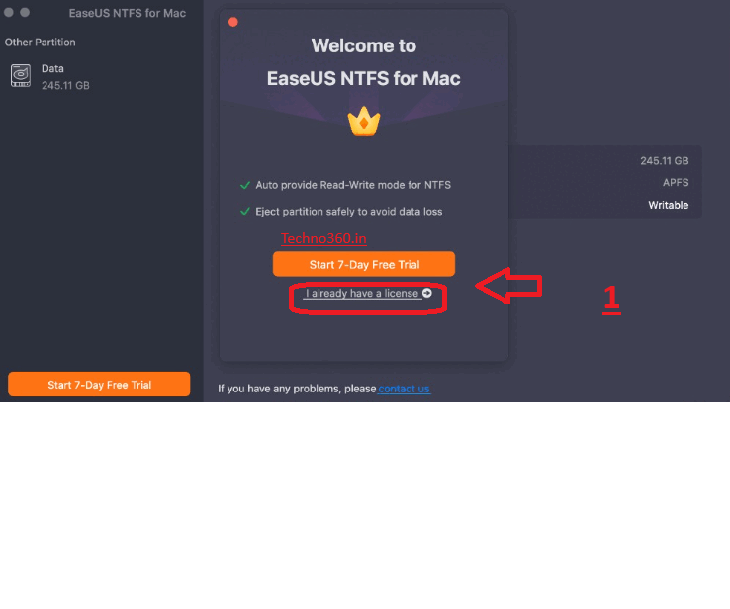
How to Use EaseUS NTFS for Mac:
Once installed and activated with your free license, using the software is incredibly simple:
- Connect your NTFS-formatted drive to your Mac
- The software will automatically detect it
- Click “Enable Writable” next to your drive
- That’s it! Your drive is now fully writable.
No more terminal commands, no more reformatting drives, and no more “read-only” errors when trying to save files to your external hard drive.
🎉 Conclusion:
With EaseUS NTFS for Mac, you can say goodbye to file transfer headaches between Windows and Mac. This free license gives you reliable, high-speed, and hassle-free NTFS support.
Share on Facebook
Post on X
Follow us
Like this: